
Step-by-Step Guide on How to Reverse Video in CapCut PC 2025
Open CapCut on PC add your clip select it, click Reverse in the toolbar wait for processing, then export the video. CapCut is a video editing app used to design content for your multiple social media accounts. It offers multiple features and tools, including music, effects, and filters to enhance the quality of your content.
You can also reverse a video using this app, and this is the topic of our discussion. Let’s explore why and how to reverse a video on this app. CapCut is one of the best editors for creating trendy videos. If you’re new here, visit our Home Page for more CapCut tools and guides.
Where Is the Reverse Button in CapCut PC?
Select the clip in the timeline, then find the Reverse option in the editing toolbar.
How to Reverse Video in CapCut PC Free?
If you enjoy editing on your PC, CapCut is the best tool to use. If you are curious to know how to reverse video in CapCut PC, the following step-by-step guidelines will surely help you.
Open the App
Apply the Reverse Effect
Customize the Reversed Video
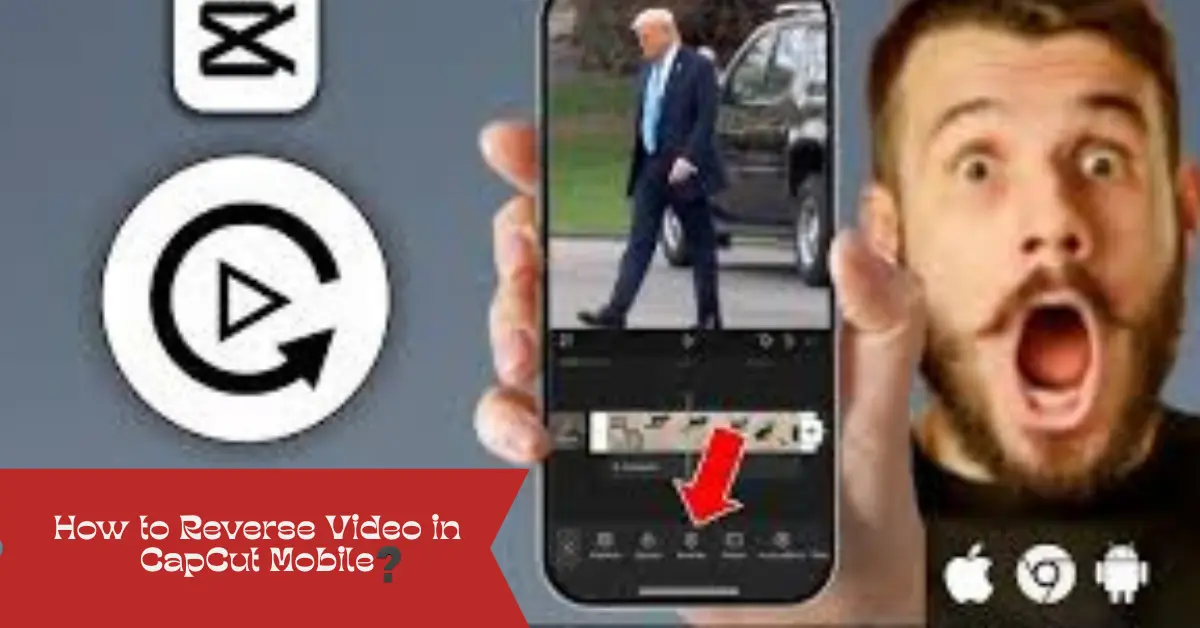
How to Reverse Video in CapCut Mobile?
You can also apply the reverse video effect to your videos using a Mobile Phone. To do so, follow the steps below.
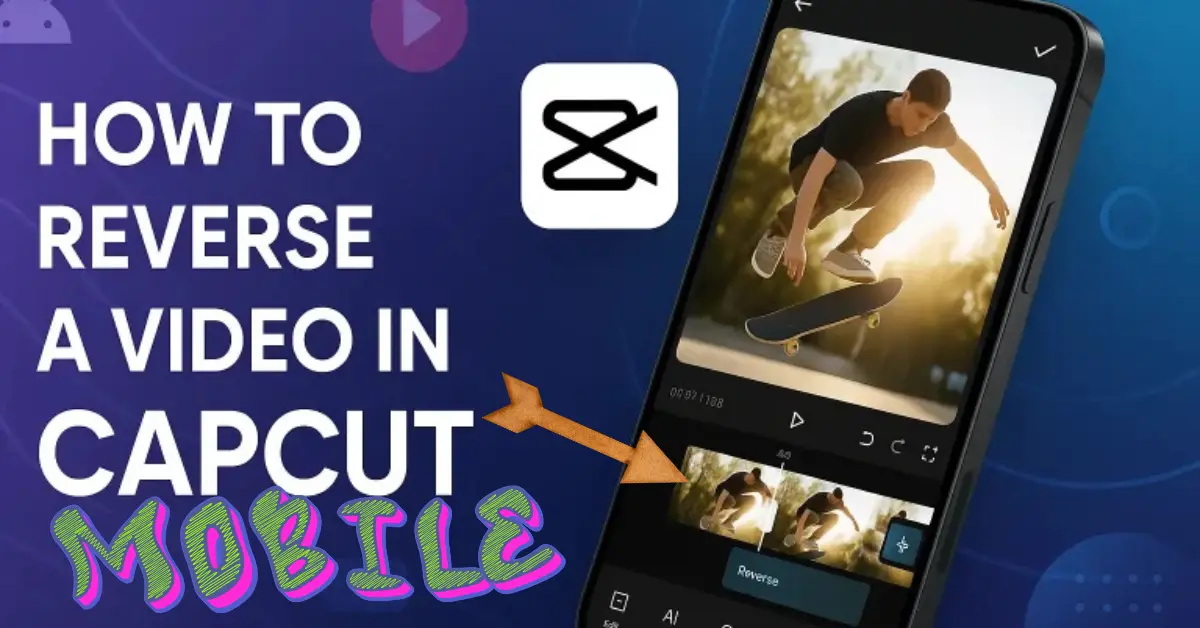
Open the CapCut app
Adjust the Video if Needed
Apply Reverse Effect
Why Reverse Your Video on CapCut?
CapCut stands out due to its compatibility with multiple formats and instant video reversal. Reversing video can make your edits more engaging and appealing.
This feature Curious how CapCut truly compares with other editors? Read our in-depth InShot vs CapCut: Feature Comparison guide to see which app fits your editing style best.
You can also explore helpful tutorials on the FlexClip CapCut Reverse Guide.
Tips for How to Reverse Video in CapCut PC
Reversing a video on the CapCut app is easy, and it’s done by following the steps above. But what about if you are a pro in it? Follow the following tips to reverse the video on your PC like a pro.
Want to compare CapCut with other editors? Check out our latest post — CapCut vs VN Editor: Best Video App for 2025 Creators and see which one helps you edit faster and smarter.
First, check the video you want to apply the reverse effect to. If you find some time unnecessary or unusual, trim that part. It will reduce the reversing time, saving you valuable time.
When you reverse the video in CapCut, the sound of that video is automatically reversed. The revered music sounds unnatural and strange. It’s better to mute the original sound once you reverse the video. You can add background sound according to your edits.
You can also add precise text to explain the purpose of reversing a video. It will be helpful for the viewers to understand the story easily without being confused. Using texts in your videos improves your video’s storytelling.
Want smoother motion after reversing? Learn How to Add a Keyframe in CapCut for clean transitions (mobile & PC).
“These tips will improve your results when learning how to reverse video in CapCut PC.”
Factors Affecting the Video Reversing Time in CapCut?
Some factors are very important that must be kept in mind while reversing the video. Let’s discuss these factors that can influence the time to reverse a video:
🎬 Video Length
Short videos can be easily reversed, and they take less time compared to longer videos. You can trim the video before using this feature for your ease.
🖥️ Video Resolution
The video with 4K resolution takes more time to reverse compared to 1080p. Simply, the higher the video resolution, the more time is required for reversing it.
⚙️ Device Performance
Your device’s performance also influences the speed of video reversing. High-end smartphones and PC can effectively reverse the video in CapCut compared to low-end devices.
Common Issues and Their Solution While Reversing Video in CapCut
Sometimes, you may face issues while reversing the video in the CapCut app. Here we address some issues along with their solutions.“Still deciding your editor? Read our new post — CapCut vs PowerDirector: Which fits your workflow? — for a quick, practical comparison.”
| 🧩 Issues | 💡 Solutions |
| The reverse option is not showing in the App | Update the app and get the latest version Restart the device Clear the cache of the app Remove all unnecessary videos and focus on importing the video you like to reverse. The reverse effect feature is not available for some files. Convert the video to MP4 before importing |
Reverse Video may lag | Reduce clip length Lower resolution settings |
Audio Distorted | Mute the original audio of the video you reversed Add background sound |
FAQS
If you want to make your reversed clips look even smoother and more cinematic, you can also try the new Slow Motion CapCut Template — it adds a clean, trending slow-mo effect to any video.
Conclusion :
“If you follow these How to Reverse Video in CapCut PC tips, your results look more professional.”
Knowing how to reverse video in CapCut PC is important, and it is the main concern of this post that we discussed above. Reversing a video in CapCut PC is easy if you know where the Reverse button is. Follow the steps above to reverse clips smoothly without losing quality.
f you follow the above guidelines, reversing the video will be easier and done with minimal effort.
If you want to compare editing apps for better results, you can also read our latest guide on CapCut vs Filmora 2025 to see which editor performs best for advanced effects like reversing and transitions.
You can also add filters and effects to your reversed video and share it on your social accounts.“Now you clearly understand how to reverse video in CapCut PC with easy steps.”