CapCut Vs Canva? Which Editing App do You Prefer in 2025
CapCut vs Canva: Quick Comparison Verdict
CapCut is better for short videos and social media editing, while Canva is ideal for quick designs, marketing visuals, and beginners. In this digital world, people love creating engaging videos with editing apps. If you are curious to explore the best app for editing your content, you can find the answer here. Here, we discuss two editing apps, CapCut vs Canva, to highlight when and why to use these apps.
CapCut Vs Canva: Feature Comparison
The main difference between these two editing tools is given in the table below.
| Features | CapCut | Canva |
| User-Interface | A simple layout makes it easy to use, even for beginners | User-friendly interface |
| Import Options | Can import projects in different formates such as mp4, mov, m4v, flv, mkv | Allow to import the file in the most commonly used format, like MP4 |
| Export options | Export options include MP4 and MOV | Commonly export clips in MP4 format |
| Sharing Options | Share your project directly to TikTok, YouTube, and Instagram | Allow sharing the content on Facebook, Instagram, and Twitter |
| Creative Tools | AI tools such as auto-captions and the removal of background | Offer multiple unique templates and remarkable branding tools |
| Collaboration | Limited team tools | Real-time collaboration |
| Platform Availability | Android, iOS, Windows, macOS, and Web | Also supports Android, iOS, Windows, Mac, and Web |
| Best For | Editing short-form content, such as Instagram reels, TikTok videos | For those who edit pictures and video clips |
| Pricing Details | Free version for basic features Pro version for premium features (with USD 8 or $9.99 per month) | Free version Pro version (with USD 12 or $15 per month) |
| Popularity | Popular in editing short clips of TikTok, Instagram, and YouTube | Popular in business, academic institutes, and marketing teams |
| Primary User Segment | 78% micro and SMB | 75% micro and SMB |
| Adoption trend | ~9% quarter on quarter | ~1% quarter on quarter |
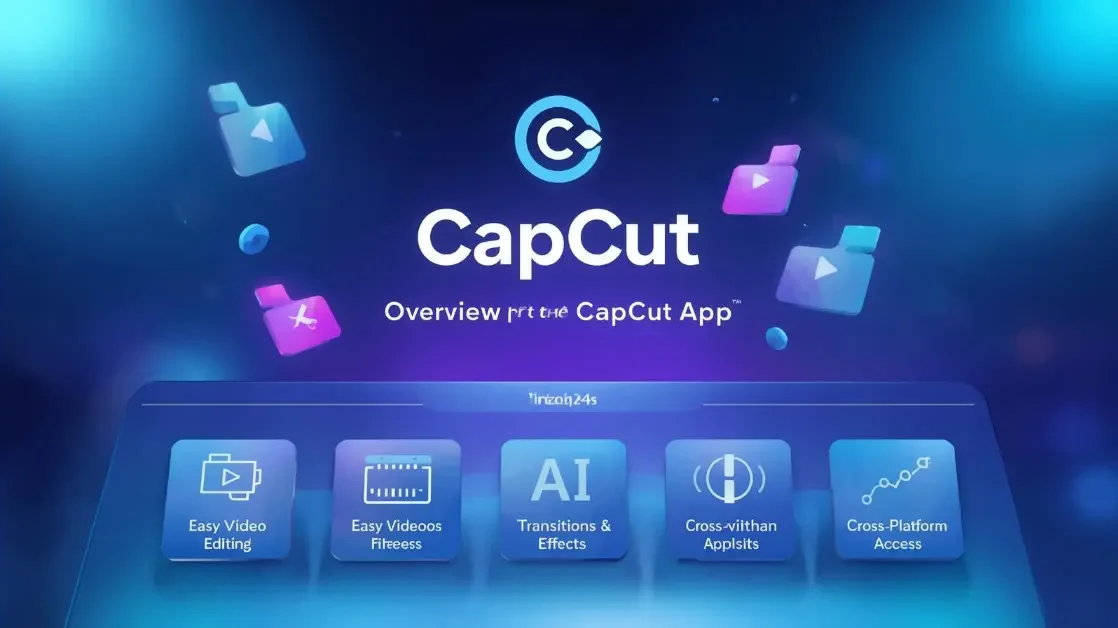
Overview of the CapCut App
CapCut is a widely used editing app that offers stunning features for its users. Its easy-to-use feature makes it more reliable for newcomers. You can use this app to value your short video content. If you love editing short clips, don’t miss our quick guide on how to reverse video in CapCut on PC it’s simple, fast, and perfect for creative video effects.Its basic features are free to enjoy, but its advanced features require a subscription.
Overview of Canva
Canva is the best online graphic design app. You can use this app to create presentations, posters, and logos for any purpose. Its remarkable tools and premium templates make the content more eye-catching. You can use this app for free or avail a subscription plan according to your project’s needs.
For a deeper insight into design tools and updates, you can also explore the official Canva website — a trusted source for creative professionals worldwide.
CapCut Vs Canva: Features Overview
Both apps come with multiple features. Here we compare the features of both apps for your ease.Want to make your videos look more professional? Check out our step-by-step guide on how to blur background on CapCut – it’s perfect for giving your clips a clean, cinematic look.
Platform Availability
The CapCut editing app is famous for its cross-platform availability. It is compatible with Android, iOS, Windows, and Mac. This accessibility makes it more usable for the editors. On the other hand, Canva is basically web-based, but it also offers desktop and mobile apps. Canva is more internet-dependent compared to the CapCut app, but both are excellent in cross-platform availability.
Creative Features
CapCut brings multiple advanced AI editing features, including video stabilization, auto-captions, and motion blur effects. It offers remarkable filters, effects, and pre-designed templates for your ease, but it is limited to video editing. On the other hand, Canva also brings a creative toolkit that enables you to create graphics and clips according to your style. Its remarkable tools and features make it a complete design platform compared to CapCut.
Editing Power & Content Specification
These features explain how well the app serves creators. CapCut works on video editing, while Canva is famous for design and works on mixed media.
| CapCut | Canva |
| Focused on short-form projects | Focus on multi-format design |
| Offers AI captions, trendy effects, and templates | Enables video placements in ads, helpful for presentations |
| Video-led content | For designers who like different content designs |
User Interface
CapCut offers a user-friendly interface for beginners. You can easily edit and improve the quality of your videos within the app. On the other hand, Canva is also a user-friendly app with a wide range of templates and a simple layout. Overall, Canva is simpler to use and convenient for users compared to CapCut.
CapCut Vs Canva: Pricing
CapCut’s free version gives basic editing features. These features are enough for beginners and casual editors. To create professional content with its premium features, you can choose the Pro version, which starts at $9.99 per month. On the other hand, Canva offers free and paid versions. Its paid version is more expensive compared to CapCut, which starts at $15 per month.
Pros and Cons of CapCut
We mention the pros and cons of this app in the following table.
Pros
Cons
Pros and Cons of Canva
Let’s discuss the pros and cons of Canva in the table below.
Pros
Cons
If your focus is short videos and social media editing, CapCut is the better choice. Canva is more suitable for quick designs and marketing visuals.
FAQS
Conclusion
CapCut Vs Canva? You can choose CapCut to edit short video content for your social media platforms.To explore more CapCut tutorials, guides, and updated editing tips, visit our Modded CapCut homepage your complete resource for everything related to CapCut.
Canva is more suitable for marketing and business as it offers a full design platform. You can pick the app according to your profession and needs. Both are compatible with Android, iOS, Windows, and Mac. If you’re a beginner designer, explore the Canva Learn Blog for free design tutorials and editing guides.