
Learn to Reverse Video in CapCut: Simple Steps for Mobile & PC
Learn to Reverse Video in CapCut:
CapCut allows you to reverse a video, a clever yet creative idea that makes your content more engaging.“How to reverse a video in CapCut is one of the easiest ways to create engaging content for social media.”The secret behind the reverse video feature in CapCut is its ability to reverse your footage. This provides an entirely new twist that captures everyone’s attention. It is a viral on TikTok, Instagram, and YouTube, and it is a great method of engaging your following.
CapCut is free, extremely easy to use, and available on both mobile devices and computers. It is very easy to put the reverse effect into practice, regardless of whether you are a beginner or an expert. It is an ideal application to promote your social media posts and videos to shine. “Don’t forget to explore our homepage for more CapCut guides and tools — it keeps everything simple in one place.”“If you’re new to editing, learning how to reverse a video in CapCut is one of the easiest effects to start with.”

How to Reverse a Video in CapCut on Android and iPhone
“Here’s how to reverse a video in CapCut on your phone using simple steps.”Using the reverse effect on the videos might sound like a very hard thing to do. But Capcut makes it very simple for editors to do so. “These tips help you get smoother results when learning how to reverse a video in CapCut.”Here are the steps.
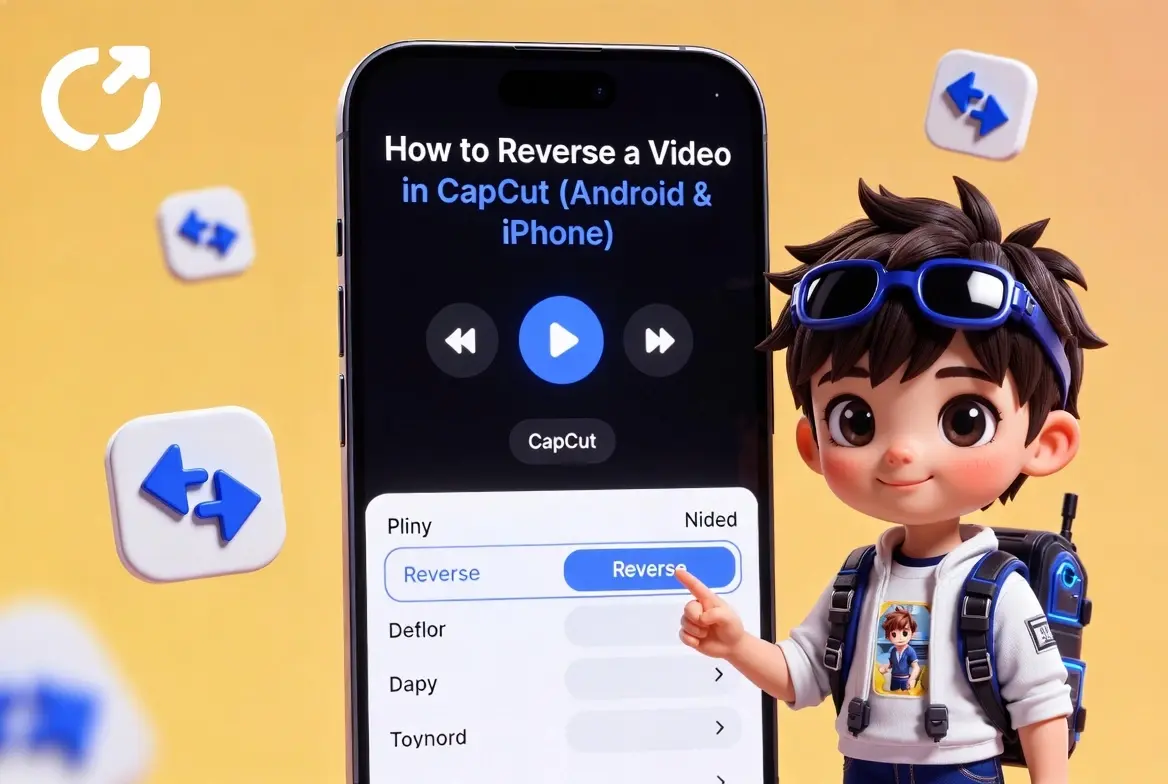
The first step is to download CapCut from the App Store (iPhone) or Google Play Store (Android).
Launch the application, press “New Project” and use a video of your choice in your gallery.
Click anywhere in your video in the timeline and scroll until you reach the revert option.
Tap Reverse to play your video in reverse.
If you do not want to reverse the audio, you can use the Extract Audio option and then apply the effect. Then you can superimpose the audio track onto the reverse video.
After you have your reversed video in your content, save it by tapping Export.
How to Reverse a Video in CapCut on PC (Windows/Mac)
“Many users prefer desktop editing, so here’s how to reverse a video in CapCut using the PC version.” It is as simple as reversing a video on your PC as on your phone. Here’s how you can do it:
“If you’re using a computer, you can follow our easy PC guide here — it makes the reverse process even faster.”
“If you’re exploring other editing apps similar to CapCut, my detailed CapCut vs VN Editor comparison may help
“If you want the official version with all features, you can also use the CapCut web editor here → https://www.capcut.com/ to reverse your videos directly online.”“If reversing doesn’t work, try these fixes before repeating the steps on how to reverse a video in CapCut.”
Why the Reverse Option in CapCut May Not Work
Sometimes, editors encounter issues while editing videos on Capcut. But the silver lining here is that it may have a very easy fix. If you encounter any issues while applying the reverse option on capcut, try one of the following solutions.
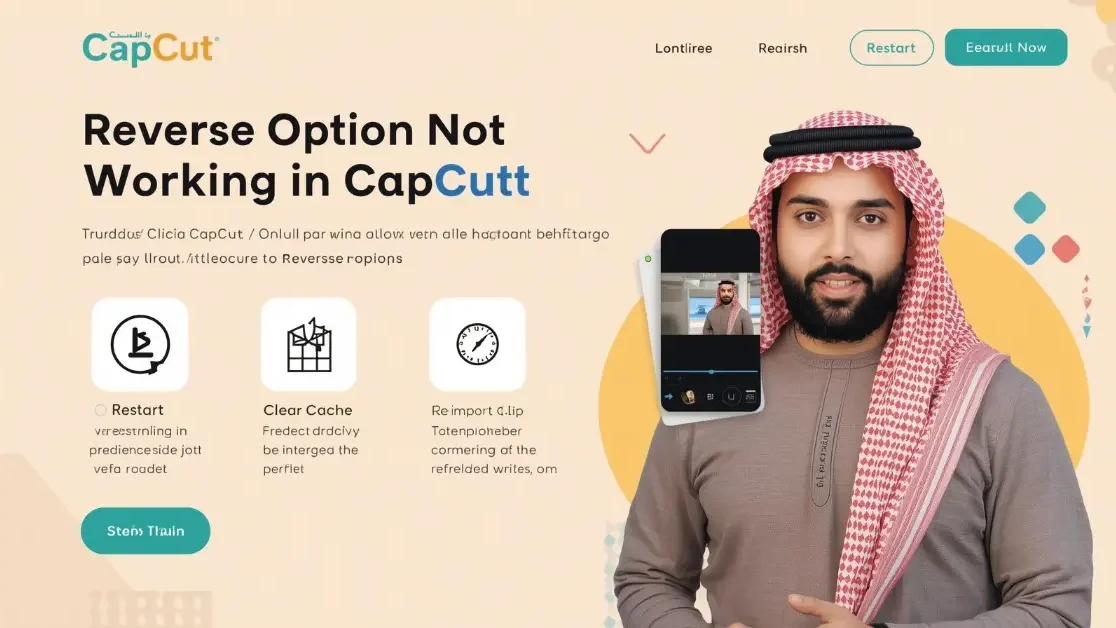
Try to close and re-open CapCut. The issue can sometimes be resolved by a quick restart.
Go to the settings of your device, locate the CapCut app, and clear its cache. This usually helps resolve the performance issue.
If a particular clip is not reversing, delete it from the timeline and re-import it. This might do the trick.
If the issues persist, reinstall CapCut to restart the application and resolve all the problems.
Also, you should update CapCut and your device’s OS to the latest version to eliminate bugs and glitches.
“If your video isn’t loading properly in CapCut, you can convert or fix the file using the free VLC Media Player here → https://www.videolan.org/vlc/ before applying the reverse effect.”
Key Uses of the Reverse Effect in CapCut
Reverse Effect in CapCut can be used to make very stunning videos. We have listed some ways to make your videos and content more engaging.
Reverse a simple video (like jumping into water) to make it visually intriguing.
Simple clips, such as jumping into water, appear attractive when reversed, and unique visuals appear in them.
Reverse clips to evenly move through one scene to the other.
Underline essential scenes in your videos, particularly in tutorials, by reversing the actions.
Backwards videos of objects breaking or fixing to provide entertaining and unexpected content to your audience.
You can use the reverse music as a value of creativity, or when creating works of art.
Reverse videos are highly viral and increase interaction on apps like TikTok, Instagram, and YouTube.
“If you also want to compare CapCut with another powerful editor, you can check my detailed guide on CapCut vs KineMaster
FAQs
Conclusion
It is very simple and enjoyable to reverse the videos in CapCut to make your content more interesting. You can apply it in seconds, regardless of whether you are using CapCut on a mobile device or a PC, thanks to its easy-to-use interface. This feature will increase social media interactions, and your audience will be surprised by new visuals, resulting in higher engagement.“Now you know how to reverse a video in CapCut on both PC and mobile to create smooth and creative effects.”